



Every shop has the same quiet problem: the handoffs. An order gets confirmed, but nobody tells production the deposit landed. A drawing is approved by email, and the approval sits in someone’s inbox. A rush order jumps the queue, and purchasing finds out three days later.
In this session, Frank — eleven years at Genius — walks through how workflow steps, Genius Connect and Power Automate close those gaps inside your manufacturing ERP. He builds it around three situations every custom manufacturer knows: moving an order from confirmation into production, assigning and reassigning shop floor tasks, and pushing a rush order through approvals, expedite fees and MRP without anything falling between chairs. With roughly two million manufacturing jobs projected to go unfilled across North America, doing more with less has stopped being a slogan.
What You’ll Learn in This Webinar
Chapter 1 — Manual Production and Order Gaps
Frank opened with the reality behind the topic: hiring is hard, senior people are leaving or changing roles, and the knowledge often walks out with them. His framing for the hour was “do more with less and that not being a slogan anymore, but it’s really reality.”
A live poll asked attendees where they lose the most time between confirming an order with a customer and getting it ready for production. The four options were approvals or deposits, design reviews and technical confirmations, knowing what to release first, and figuring out who does what. Most answers landed on the first two, so that’s where the examples went.
The “before” picture will be familiar. You need a deposit before the job goes to production, so you chase the customer, then chase accounting, then tell production it’s clear — by email, by phone, or by a Post-it stuck to the side of a monitor. Same story for a drawing approval or a technical spec you need confirmed before fabrication starts.
Chapter 2 — Automating With Workflow Steps
Workflow steps are not statuses. A status is the ERP’s own lifecycle — active, deleted, history. As Frank put it, “A workflow step is something very specific to your process”— you define the stages, and you define which stage can flow into which.
In his example, an order moves through waiting for drawing approval, then waiting for deposit, then queued for production. Someone can flip the step manually on the order or drag the card across the board. But the deposit stage doesn’t need a human at all: when the deposit is received in Genius, the step can flip itself and push the order straight into the production queue.
That’s the whole point of the feature — capturing the moments that normally depend on someone remembering to send an email.
Chapter 3 — Shop Floor Task Assignment
From an order in Genius Web, you can click through to the production task and land on the production task screen. In version 18, workflow steps became available on production tasks — and, importantly, those steps can now be used as filters on the shop floor control screen.
The practical version: a production manager or team lead looks at an unassigned task on the board and drags it onto the person who should do it. When that operator opens their shop floor screen, the task is waiting for them. The shop floor filter bar already had options like material availability; version 18 adds your own workflow steps alongside them, so an operator can choose to see only the tasks assigned to them.
Chapter 4 — Custom Workflow Filter Ideas
Employee assignment is the obvious use, but Frank spent time throwing other ideas at the wall — and invited attendees to add their own. One attendee asked whether communication between steps can be handled with conditions. The answer: emails sent from a document in Genius are stored against that document, currently on sales orders, quotes and purchase orders, with wider deployment coming. The communication attaches to the document rather than to the workflow itself.
Another asked about departmental handoffs — a service tech creating an invoice who needs accounting to know it’s ready to confirm and send. That’s feasible, and Frank came back to the mechanics later in the session.
Chapter 5 — Machine and Skill Based Scheduling
Genius scheduling already lets you tag a machine — assembly station one, press number two. But plenty of shops don’t want to micromanage at that level. They want to schedule against a generic work centre like welding or press, then get specific further down the line. A workflow step lets you do exactly that: schedule generically, assign the specific press through the step.
Frank floated three more patterns: skills, where a task needs someone with a particular certification; shift, where the night shift only sees what the night shift is allowed to touch; and rush or hold lanes for fast-forwarding or pausing work.
One limit came out of the Q&A here. Asked whether this could show an employee’s workload or overtime, Frank was clear that scheduling does not subdivide by workflow step today — it still schedules on the machine. The tag is for identifying and filtering. Workload analysis is a dashboard job, where slicing by workflow step is easy.
Chapter 6 — Live Demonstration of Task Reassignment
This was the moment the feature earned its keep. Scenario: an operator calls in and says he’s going to the doctor and won’t be in. If you know he’s out for a while, you drag his tasks onto someone else. But if you don’t know whether he’ll be back at noon, reassigning everything is wasted work.
Instead, Frank opened another operator’s shop floor screen and simply added the absent operator to the workflow step filter — “Roberto’s not showing up, Tiger, can you pick up the slack?” — and both sets of tasks appeared in one list. No reassignment, no data changes, reversible in a second.
Worth noting what happened next in the demo: one of the absorbed jobs sorted above the tasks already assigned, because the shop floor list still orders by schedule and priority. Frank confirmed the sorting logic is unchanged — the only addition is the filter itself. If you don’t select a workflow step, everything shows up as before.
Chapter 7 — Automating Rush Order Workflows
A second poll asked what falls between the cracks on a rush order. Attendees pointed mostly at stockouts and the knock-on impact to other orders. Frank picked rush orders as his worked example for a reason: “It touches everybody. It bullies a bit everybody in the shop.”
Here’s the domino chain he walked through. Someone flips the sales order’s workflow step to rush. An automation checks the conditions — is it over a dollar threshold, is it inside the firm scheduling window — and pings the accountable VP or project manager on Teams, with the order value and line items pulled in so they can decide without opening the system. They approve from Teams. That approval flows back to Genius, changes the step, and triggers a second automation that adds an expedite fee line to the sales order. Because the dates just changed, a third automation re-runs MRP, checks material status, and warns the buyer or inventory manager if anything is now short.
None of that requires anyone to remember anything.
Chapter 8 — Genius Connect and Power Automate
Three tools orchestrate the whole chain.
Workflow steps define the stages and the permitted flow between them, and they carry security. Only a VP or project manager might be allowed to move a step from to approve to approved. Steps can also block actions — on quotes, and on sales orders, an unapproved order can be prevented from being confirmed. (Confirming a sales order in Genius is what creates the job orders for the shop, so that block has teeth.)
Genius Connect is the trigger. Creating a document or changing a workflow step fires a connect, which calls something like Power Automate and hands it a data package. Frank was careful to note that Power Automate is Microsoft’s tool, not a Genius module — it’s simply what Genius has tested and validated. Other tools may work; those are the ones with mileage.
REST APIs do the reading and the writing. Inside Power Automate you can look up material status, quantities on hand or line counts, run MRP, and then write back — inserting a sales order line, adding the fee, calculating it.
Chapter 9 — Automation Best Practices and Safeguards
The wrap-up was a philosophy more than a feature list: wherever a process depends on a human remembering, put a safeguard in. Forgotten approvals, missing expedite fees, a purchaser who never heard the date moved, a scheduler who doesn’t know a two-month-old order just became live work. As Frank put it, “there’s so many things we know that can go wrong in the shop that a system like ours can catch and warn you about.
He also flagged assignment on production tasks as the standout addition in the latest release — available in version 18 and up, with migration handled through customer success.
Chapter 10 — Interactive Q and A Session
The Q&A ran long, and several answers are worth keeping:
- Is this in the web app? Yes. Workflow steps are deployed across the web interface — shipping, receiving, orders, POs, work orders, tasks. Genius Connect is web-only; triggering on document creation or a field change requires the web interface.
- Can order confirmation be automated? Yes, and Frank demos this himself: converting a quote to a sales order, confirming it, and creating the shipping document, all without clicks.
- Can workflow steps track PO line status? Steps sit at the PO header level, not per line. If everything on the PO ships together, you can track stages like ordered, shipped, received. Genius doesn’t otherwise tell you whether your supplier has shipped.
- Can I automate work order workflow steps? Not yet. The public API to change a work order workflow step hasn’t been released. It typically follows a couple of months after the web screens ship, so it’s expected soon — Frank encouraged attendees to log a feature request to speed it up.
- Can notifications live inside Genius instead of Teams? In-app notifications were tried a few versions back and didn’t stick, because the people who needed them weren’t logged in around the clock. A Teams ping or email proved more effective. The current focus is archiving communications against the document itself.
- Can automation handle warehouse transfers? Frank pointed to recommended reorder as the existing tool for automatically creating POs, and asked for more detail on the use case before answering fully. The REST APIs for purchase orders are either already available or close behind, since PO screens are only now reaching the web.
Chapter 11 — Genius Academy and Support Resources
Everything in the session is documented and self-serve. The Customizing Genius Web course on Genius Academy includes a Genius Connect section covering what it is, how to create triggers and rules, and a worked example that builds a connect running a Power Automate flow to ping Teams — a few minutes of video. A second course covers workflow step setup, and a third walks through a full quoting process end to end, including an API write. <cite>”You could definitely be self sufficient doing this today,”</cite> Frank said.
On availability: workflow steps have existed for several versions, going back to NG and desktop, and are rolling out across every web screen. Genius Connect coverage started at version 17.2 with seven entities and expanded in 18, with more coming. Workflow steps on production tasks require version 18.0 or higher. To check what’s live in your own system, open the customization section in Genius.
Questions that didn’t get a full answer can go to customersuccess@geniuserp.com, or hello@geniuserp.com if you’re not yet a Genius customer.
Chapter 12 — Workflow Step Grouping Capabilities
The last question of the session came from an attendee tracking progress on several independent jobs, spread across different sales orders, that are all slated to ship together — multiple products for the same dealer.
Frank’s answer: as long as those jobs are grouped or flagged in some consistent way, workflow steps can help you identify which ones are ready to ship and which aren’t, so the group can be assembled and released together. He was careful not to over-promise on a use case this specific, and suggested a sidebar conversation to work through it properly — noting that a GTA could likely already achieve much of it without going through Genius Connect or workflow step automation at all.
FAQ
What's the difference between a workflow step and a status in Genius ERP?
A status is the system’s own lifecycle for a document — active, deleted, history, archived. A workflow step is specific to your process: you define the stages, name them after what actually happens in your shop, and define which stage can move to which. Steps can also carry security, restricting who’s allowed to advance a document to the next stage.
Which Genius ERP version do I need for workflow steps on production tasks?
Version 18.0 or higher. Workflow steps themselves have been around for several versions, including in NG and the desktop version, but assigning them to production tasks — and filtering by them on the shop floor screen — arrived with version 18.
Can workflow steps change how Genius schedules or prioritizes jobs?
No. Scheduling still runs on the machine and does not subdivide by workflow step. A step is a tag for identifying and filtering work. If you want to reorder priority on a rush, that has to come from an automation that writes the sequence back, or from changing the date on the sales order or job, which re-sequences automatically. Workload analysis by step is better handled on a dashboard.
What is Genius Connect, and how does it work with Power Automate?
Genius Connect is the trigger layer. When a document is created or a value like a workflow step changes, the connect fires and calls an external flow — typically Microsoft Power Automate — passing along the relevant data. From there, REST APIs let the flow read information back out of Genius (material status, quantities, line counts, MRP) and write transactions back in, such as adding a line to a sales order. Power Automate is Microsoft’s tool, not a Genius module; it’s the one Genius has tested and validated.
Can I automate order confirmation in Genius ERP?
Yes. Converting a quote to a sales order, confirming that order, and even creating the shipping document can all be automated for qualifying items. Confirming a sales order in Genius is what creates the job orders for the shop, so this is also a step worth putting security on — an unapproved order can be blocked from confirmation.
Are workflow steps available on purchase order lines?
Not currently — they sit at the PO header level. If everything on a purchase order ships together, header-level steps work well for tracking stages like ordered, shipped and received. For POs with mixed shipping dates, the header-level tag is less useful.

Get your eBook Scared to implement a new ERP?
"*" indicates required fields
Explore related articles

How will Artificial Intelligence Impact ERP Software?
AI technology built directly into ERP systems can help automate routine processes or create better user experiences by learning and adapting to user's language, allowing systems to better understand and respond to users.

What’s New in the HubSpot–Genius ERP Integration
See how our integration with HubSpot connects customer information, quotes and sales orders across both systems.
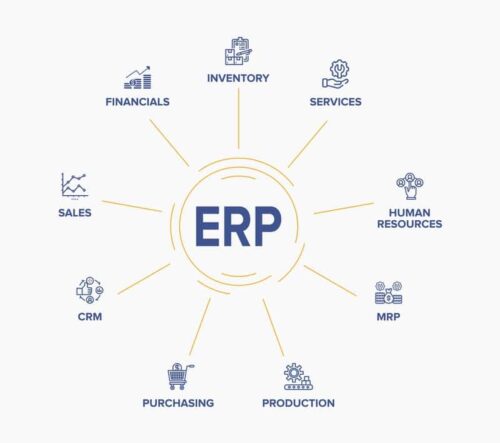
Back To Basics: What Is an ERP?
An ERP is business process management software that connects and integrates every aspect of a business — giving manufacturers visibility over their entire operation and allowing them to create better manufacturing processes, lower costs, and improve performance.

A manufacturing ERP that works as hard
as you do.
Give us a call to see how we’re different.

